


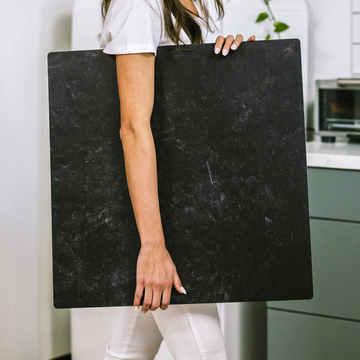

As a food and product photographer who has shot countless campaigns, I know the pain of staring at 200+ RAW files after a long shoot. You've nailed the lighting, composition, and styling on your Replica Surface, and now you need to deliver consistent, polished images-fast. Batch editing isn't just about speed; it's about maintaining a cohesive look across your entire set. Here's my professional breakdown of the most efficient workflows for batch editing food photography.
Why Batch Editing Matters for Food Photography
Food photography is unique because consistency is everything. Whether you're shooting a cookbook, a menu, or social media content, your images need to look like they belong together. Batch editing allows you to apply the same color grading, exposure adjustments, and sharpening to every photo in a series. This is especially critical when you've shot multiple angles of the same dish on the same Replica Surface-the surface's texture and color should read identically across every frame.
The Core Workflow: Start with a Master Edit
Before you even think about batch processing, you need a single "hero" image that represents your final look. This is where the real artistry happens. On a Replica Surface like our Classic White Marble or Warm Wood, you'll want to nail the white balance first. Food photography lives and dies by accurate color-a slightly warm cast can make a salad look unappetizing, while a cool cast can dull the richness of a chocolate dessert.
Once you've perfected one image, you'll sync those settings to the rest of your batch. The key is to work non-destructively, meaning your original files remain untouched while adjustments are stored as metadata or sidecar files. This preserves your ability to tweak individual images later.
Essential Batch Editing Capabilities
1. Global Adjustments with Selective Overrides
The most powerful batch editing workflows allow you to apply global corrections-exposure, contrast, white balance, and lens corrections-to every image simultaneously. But food photography demands nuance. A perfectly seared steak might need slightly different highlights than a bowl of soup. Look for software that lets you apply a base edit to all images, then quickly override specific settings on individual photos without breaking the batch workflow.
2. Presets and Profiles
Creating custom presets is the backbone of efficient batch editing. I recommend building presets for your most common Replica Surface pairings. For example:
- Light Surfaces (White Marble, Soft Linens): A preset with +0.3 exposure, slightly lifted shadows, and a subtle warm tint.
- Dark Surfaces (Slate, Charcoal Wood): A preset with +0.7 exposure, boosted clarity, and a cooler white balance to keep food vibrant against the dark background.
These presets become your starting point, saving 60-70% of your editing time on every shoot.
3. Culling and Rating
Batch editing isn't just about processing; it's about selecting. Efficient culling workflows let you quickly flag, star, or color-code your best shots. I use a simple system: 5 stars for hero images, 4 stars for supporting angles, and 3 stars for detail shots. This hierarchy helps you prioritize which images get the most attention during batch processing.
Advanced Techniques for Food Photography
Color Grading Across a Set
Food photography often benefits from a consistent color story-think warm, golden tones for a bakery shoot or cool, crisp tones for seafood. Batch editing tools allow you to apply split-toning or color grading to every image at once. I always test my grade on three different photos first: one light, one dark, and one with a neutral background. This ensures the grade works universally before committing to the batch.
Sharpening and Noise Reduction
These should always be applied last and consistently across your batch. Food textures-from the crust of bread to the bubbles in a carbonated drink-need careful sharpening. Apply moderate sharpening globally, then go back to your hero images for selective sharpening on key details like a drizzle of sauce or a sprinkle of herbs.
Metadata and Keywords
Don't overlook the power of batch-applying metadata. Adding your copyright, keywords (e.g., "food photography," "Replica Surface," "flat lay"), and captions to every image saves hours of manual entry. This is especially valuable if you're delivering to a client or uploading to stock photography sites.
Practical Tips for Your Batch Editing Workflow
- Shoot with Editing in Mind - Use a gray card or color checker in your first frame of each setup on your Replica Surface. This gives you a reference point for white balance and exposure across the entire batch.
- Work in Tiers - Start with global corrections, then move to targeted adjustments. Don't try to perfect every detail in the first pass.
- Use Virtual Copies - If you need both a bright and a moody version of the same image, create virtual copies rather than duplicating files. This saves storage and keeps your batch organized.
- Back Up Your Presets - Your custom presets are gold. Export them and store them in a cloud drive so you can access them from any workstation.
- Test on One Image First - Before applying any batch adjustment, test it on a single representative image. Look for clipping in highlights or shadows, unnatural color shifts, or loss of texture.
The Bottom Line
Efficient batch editing is about working smarter, not harder. The best workflows are the ones that integrate seamlessly into your existing process and give you the flexibility to maintain your creative vision while processing hundreds of images. Start with a strong master edit on a single hero image shot on your Replica Surface, build presets that complement your surface choices, and always leave room for individual adjustments. Your clients-and your future self-will thank you.
Remember: batch editing handles the heavy lifting, but your eye for detail is what makes each image sing. Use the tools to save time, but never sacrifice the quality that sets your food photography apart.
