


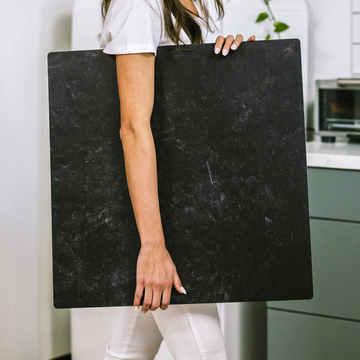

Flat lay photography is a beautiful art form, but the magic often happens in post-production. A well-executed edit can transform a good flat lay into a stunning, professional image that captures attention and tells a story. Whether you’re shooting for your brand, your blog, or a client, mastering a few key editing techniques in Adobe Lightroom or Photoshop is essential.
As a professional food and product photographer, I rely on a streamlined editing workflow to ensure my images-often shot on Replica Surfaces for their consistent, high-quality texture and color-look their absolute best. Here’s my comprehensive guide to editing flat lay photos.
The Foundation: Shooting for Success in Editing
The best edits start with the best raw files. Before you even open Lightroom, ensure your in-camera work is solid. This sets the stage for a smooth, creative editing process rather than a frustrating rescue mission.
- Shoot in RAW: This gives you maximum data and flexibility in post-processing.
- Get Your White Balance Right: Aim for accuracy in-camera. If using artificial light, ensure it's consistent.
- Mind Your Composition: A clean, intentional flat lay is easier to edit. Use the grid lines on your camera to keep things aligned.
- Use a Quality Surface: Your backdrop sets the stage. Using a premium, consistent surface ensures you aren’t fighting unwanted color casts, uneven textures, or distracting patterns in editing. A neutral, high-fidelity base lets your subject shine and makes color correction a breeze.
Part 1: The Lightroom Workflow (The Global Adjustments Powerhouse)
Lightroom is my go-to for the bulk of flat lay editing-making broad, non-destructive adjustments to color, tone, and clarity. Think of this as building the foundation of your image.
1. Lens Corrections & Transform
Start by enabling Remove Chromatic Aberration and Enable Profile Corrections. This fixes any lens distortion and color fringing. Use the Transform panel to ensure your flat lay is perfectly squared up. The Auto button often works wonders, or manually adjust the Vertical and Horizontal sliders until your surface lines are parallel to the frame. A crooked flat lay is distracting before you even begin.
2. Basic Panel - Setting the Tone
- White Balance: Use the eyedropper tool on a neutral area of your surface (like a white or gray section) to set an accurate baseline. Adjust Temp and Tint sliders from there for creative warmth or coolness.
- Exposure & Contrast: Adjust Exposure for overall brightness. Contrast adds punch. For flat lays, I often add a moderate amount of contrast (between +10 to +25) to make elements pop off the surface.
- Highlights, Shadows, Whites & Blacks: This is where you recover detail and add depth. Pull back Highlights to recover shine on utensils or glossy food. Lift Shadows to open up dark areas, but don’t overdo it-you want to maintain depth. The Whites and Blacks sliders set your pure white and pure black points. Hold the Alt/Option key while sliding to see clipping warnings.
3. Presence Panel - Adding Depth & Clarity
- Texture: This is a flat lay's secret weapon. A slight increase (+15 to +20) enhances mid-tone detail on fabrics, food, and your surface texture without creating a harsh, noisy look.
- Clarity: Use sparingly. A tiny bump (+5 to +10) can add a perceived "pop," but too much will make the image look gritty and unnatural.
- Dehaze: Useful if your image feels flat or slightly hazy. A positive value adds punch; a negative value can create a soft, dreamy effect for a specific mood.
4. HSL/Color Panel - Color Grading & Isolation
This is crucial for making specific colors sing and controlling the mood of your image.
- Hue: Shift colors subtly. For example, you might make greens (from herbs) more yellow or more teal to match your brand palette.
- Saturation: Desaturate distracting background colors slightly. Increase the saturation of your main subject (e.g., a red strawberry) to draw the eye directly to it.
- Luminance: Brighten or darken specific colors. Often, increasing the luminance of yellows and oranges in food makes it look fresher and more appetizing.
5. Detail Panel - Sharpening & Noise Reduction
- Sharpening: Under Details, set Amount between 40-70, Radius at 1.0, and Detail between 20-30. Here's the pro tip: use the Masking slider while holding Alt/Option-drag until only the key edges (like the outline of a product or utensil) are white. This sharpens your subject, not the noisy background or smooth surface.
- Noise Reduction: Use Luminance noise reduction cautiously (under 20) to smooth grain, especially from shadow lifting.
6. Graduated & Radial Filters - Local Adjustments
Simulate directional light or highlight your subject without affecting the whole image.
- Create a Radial Filter over your main subject. Slightly increase Exposure, Contrast, and Clarity. Check Invert Mask so the effect is outside the circle, then feather it heavily and lower the effect. This subtly darkens and de-emphasizes the edges, guiding the viewer's eye inward.
- Use a Graduated Filter from the top or side to very subtly darken edges for a natural vignette, increasing focus on the center of your composition.
Part 2: The Photoshop Finishing Touches (Pixel-Perfect Precision)
When you need pixel-level control for cleanup or advanced retouching, round-trip your image from Lightroom to Photoshop. This is where you handle the fine details.
1. Spot Healing & Clone Stamp
Zoom to 100%. Use the Spot Healing Brush Tool (J) set to Content-Aware to remove dust, crumbs, or tiny imperfections. For larger or patterned areas, the Clone Stamp Tool (S) at a low opacity (20-30%) is your best friend for sampling and replicating texture seamlessly.
2. Frequency Separation (Advanced Texture Retouching)
This is a pro technique for smoothing product surfaces or food without losing the realistic texture you worked so hard to capture.
- Duplicate your layer twice. Name the bottom one Texture, the top one Color.
- On the Color layer, apply Filter > Blur > Gaussian Blur (just enough to smooth color variations).
- Select the Texture layer. Go Image > Apply Image. Layer: Color, Blending: Subtract, Scale: 2, Offset: 128. Click OK.
- Change this Texture layer's blend mode to Linear Light.
- Now, paint on the Color layer with a soft brush at low opacity to even out tones, and on the Texture layer to repair any damaged texture.
3. Dodging & Burning for Dimension
This classic technique adds incredible depth to a flat lay. Create a new layer, set its mode to Overlay, and fill with 50% gray. Use a soft, low-opacity (5-10%) brush with white
